





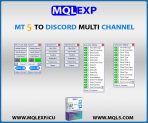
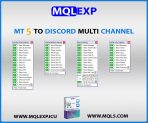
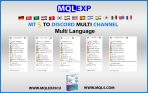
MT4 & MT5 To Discord Multi Channel Signal Provider EA
Broadcast your MetaTrader 4 and MetaTrader 5 trading signals to multiple Discord channels simultaneously with 100% independent configurations. Manage public, VIP, and tiered member channels from a single chart with custom screenshot templates, granular order filters, and automated scheduled reports.
- Dual/Multi-Channel Routing: Complete separate settings and bot parameters for each Discord channel.
- Unified MT4 & MT5 Package: Native
.ex4and.ex5files included in one download. - Visual Trade Proof: Automated high-resolution screenshots with custom templates and Risk-Reward box calculation.
- Full Automation or Manual Control: Broadcast setups automatically on execution or trigger signals selectively from the on-chart GUI.
Download the free demo package directly above to evaluate on your trading terminal.
$30.00
Resources & Support
Telegram Support
Official product support on Telegram
YouTube Tutorials
Setup guides & product walkthroughs
MQL5 Market
Explore our official MQL5 store
Why Choose MQLEXP Tools
Official Product Access
Download and activation through each product’s listed official sales channel.
Purpose-Built Trading Tools
Developed for practical MetaTrader workflows, with clear product specifications.
Platform-Specific Products
Check the MT4 or MT5 compatibility stated on each product page.
Guides & Updates
Product documentation, setup instructions and release information.
MT4 & MT5 to Discord Multi Channel Signal Provider EA Ultimate Signal Broadcasting
For growing trading communities, prop trading desks, and professional signal providers, managing a single alert feed is rarely enough. Traders often operate segmented environments: a public showcase channel, a VIP subscription feed, and dedicated asset channels. Running multiple separate Expert Advisors to feed different channels creates terminal lag, execution conflicts, and management headaches.
MQLEXP solves this with the MT4 & MT5 to Discord Multi Channel Signal Provider EA. This institutional-grade Expert Advisor bridges your MetaTrader 4 and MetaTrader 5 terminals directly to multiple Discord channels simultaneously. Crucially, each channel operates with its own distinct logic, filtering criteria, and message templates—all powered seamlessly from a single terminal chart.
Introduction to the Multi-Channel Expert Advisor
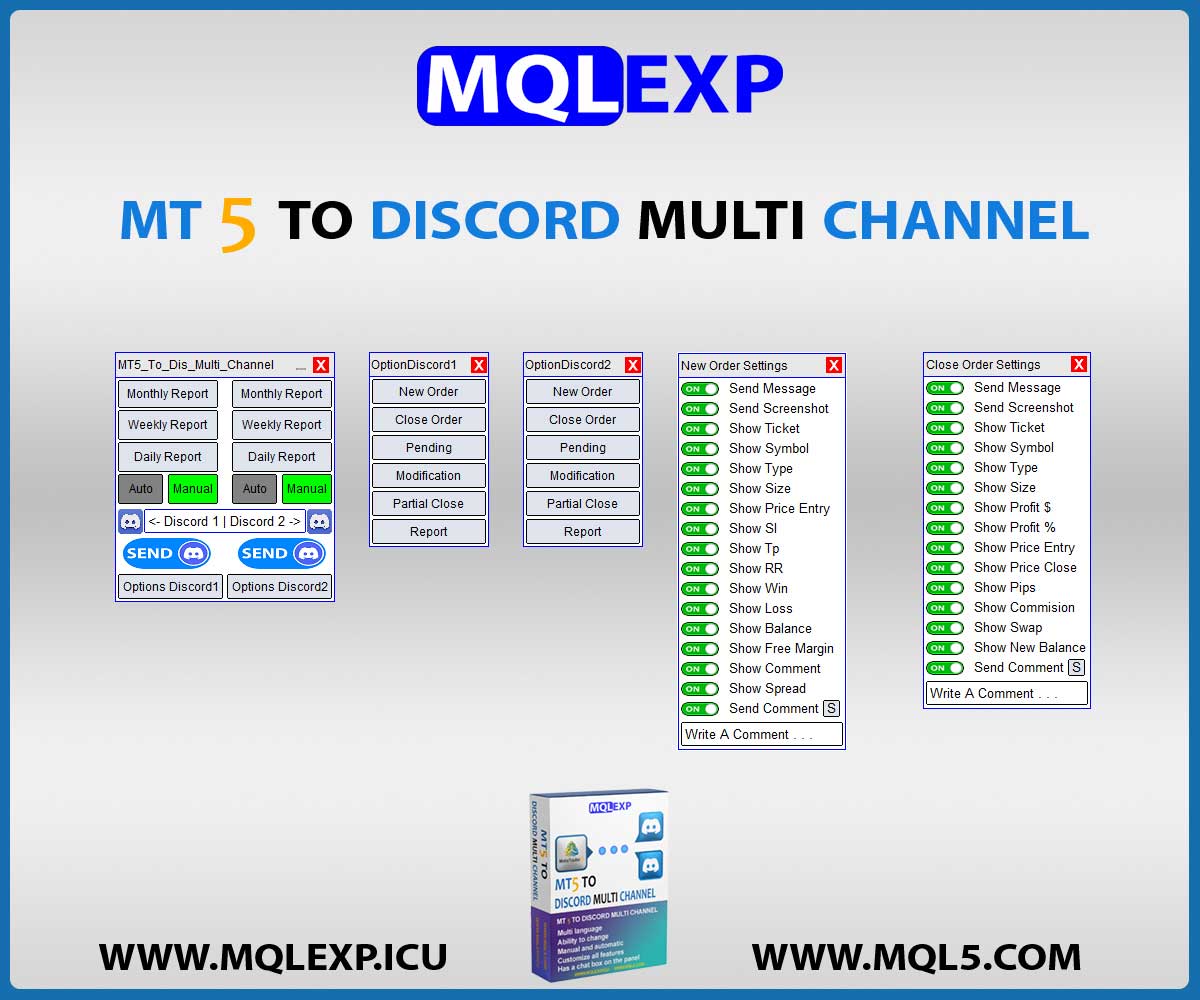
The MT4 & MT5 to Discord Multi Channel EA features an intuitive, high-performance on-chart graphical interface (GUI). Whether you want to route scalp trades to a VIP channel while sending swing setups and daily overviews to a free channel, the EA provides dedicated control pipelines for each destination channel.
- Independent Channel Architecture:
Configure Webhooks, Channel IDs, message layouts, and filtering parameters separately for both channels. - Dual Operating Modes:
Choose Automatic Sending for instant trade-by-trade broadcasting or Manual Sending for curated setups approved directly on the chart. - Full Customization:
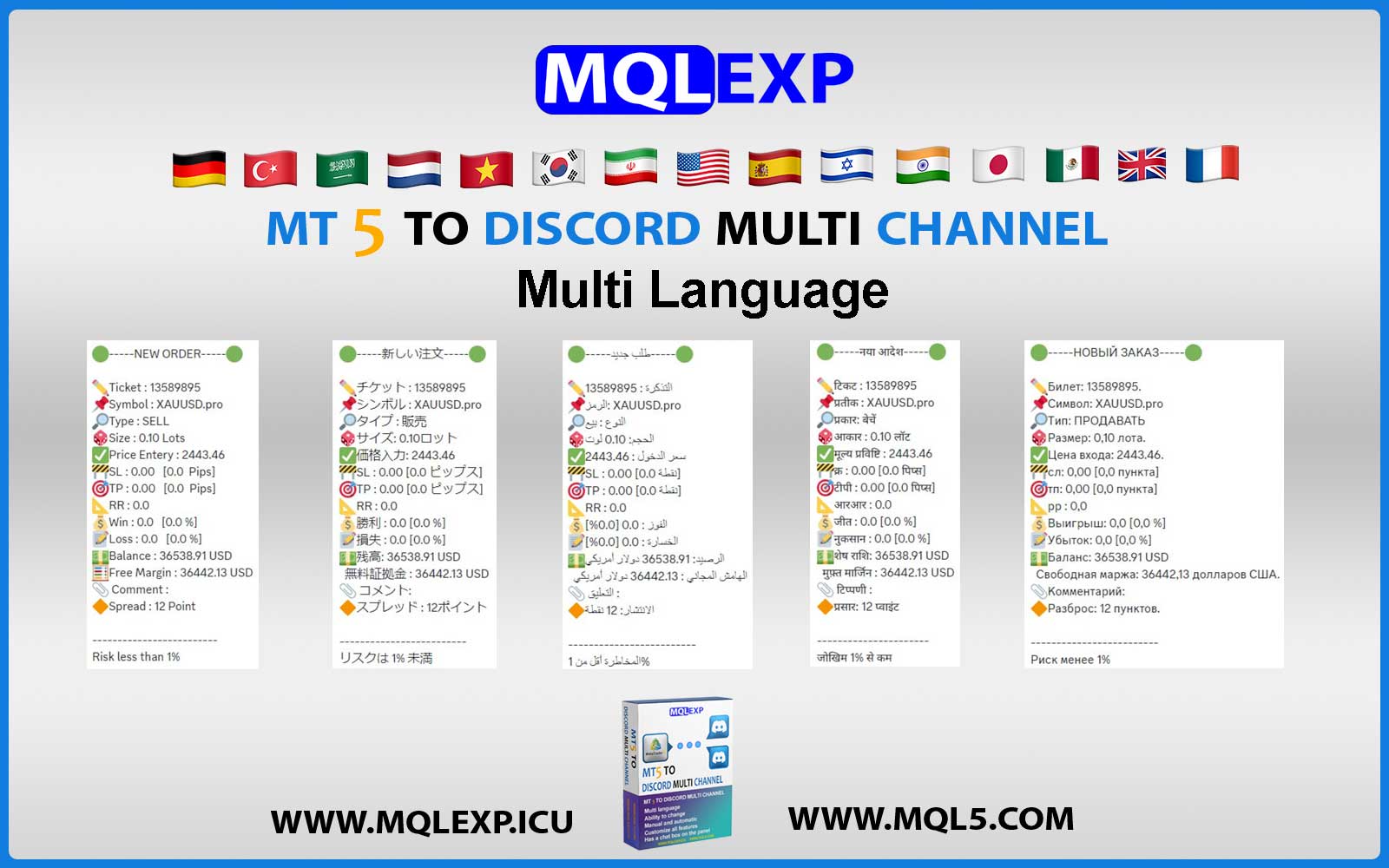
Adjust languages, emojis, and layouts so each channel reflects its intended branding and audience level.
Key Features MT5 To Discord Multi Channel
(All settings are separate for both Discord channels)
- All settings are separate for both Discord channels
- The possibility of using both Telegram channels separately:
Route distinct trading streams into two separate Telegram channels concurrently from one trading terminal. - All Telegram settings are separate and have the ability to be personalized:
Customize API keys, Channel IDs, formatting, and permissions independently for each broadcast target. - Possibility of Manual or Automatic sending:
Enable automated trigger feeds upon order execution or manually publish signals via the interactive chart buttons. - Customize Message format – Language – Emoji:
Personalize wording, localized translations, and visual emoji sets independently for channel 1 and channel 2. - Customize of Gold, Silver and Bronze signals:
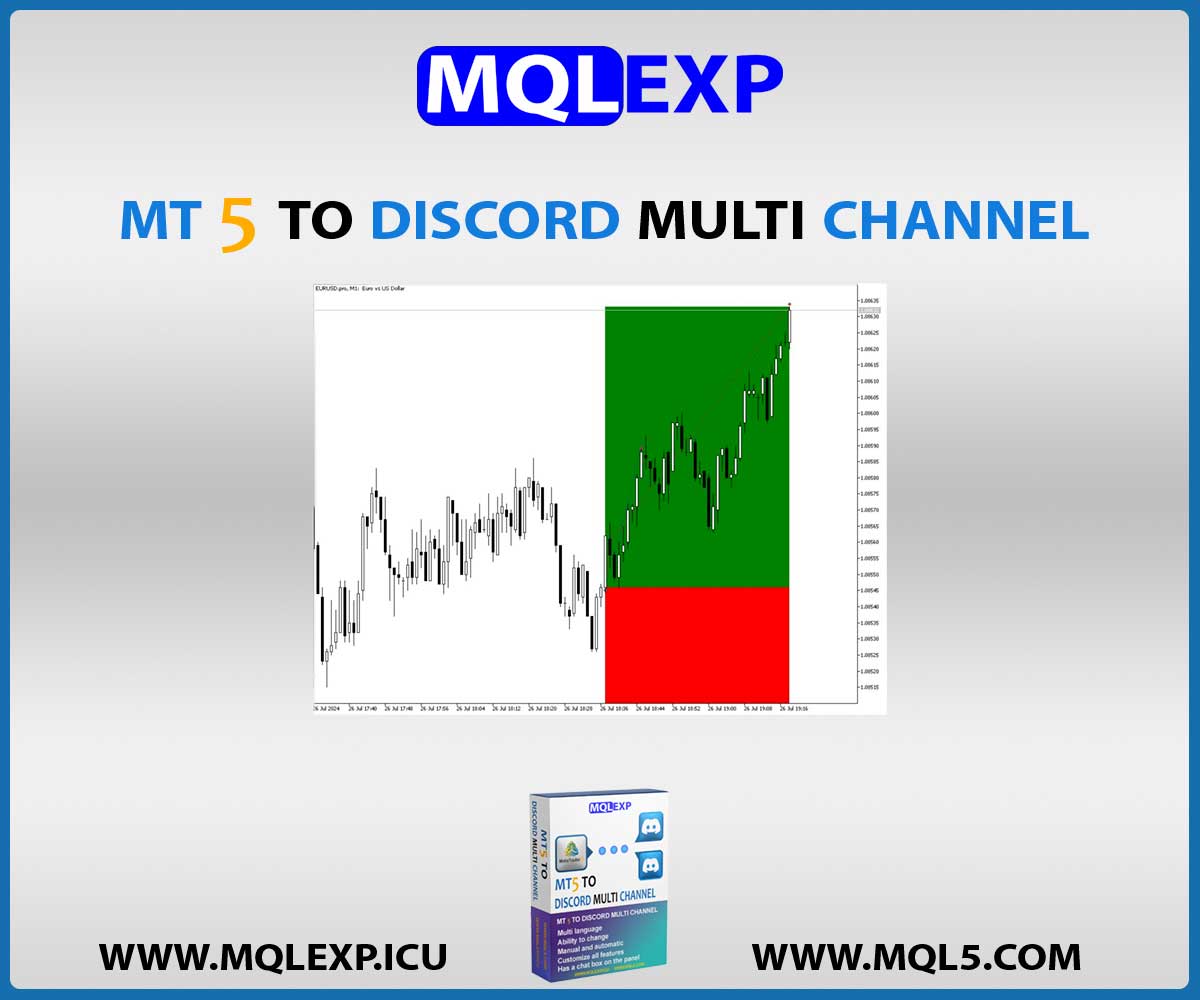
Assign tiered rankings (Gold, Silver, Bronze) to trade alerts and direct higher-grade setups exclusively to premium channels. - Setting related to the Screenshot at the moment of opening or closing the position:
Capture instantaneous, high-resolution chart snapshots at order open and close events for full trade transparency. - Customize which signal types to send:
Selectively enable or disable notifications for opens, closes, modifications, and pending states per channel. - Filter trades to send by Symbol or Magic Number:
Isolate specific currency pairs, indices, or automated EA algorithms so only relevant trades are broadcast. - Not sending or sending a special Symbol or Magic Number:
Set up precise whitelist or blacklist filtering rules for individual symbols or magic numbers. - Ability to send Daily – Weekly – Monthly Report or customized Reports based on (Date and Time):
Keep your community informed with automated periodic performance statements or custom date/time range summaries. - Send an alert or point of view through the Chat Box:
Broadcast ad-hoc market analyses, breaking news commentary, or technical chart opinions directly from your MT4/MT5 terminal into your Telegram chats. - Customizable comments:
Attach personalized trade notes, tags, or risk disclaimers to outgoing signals.
Complete Settings For Order Details
(All customization steps are separate for both Telegram channels)
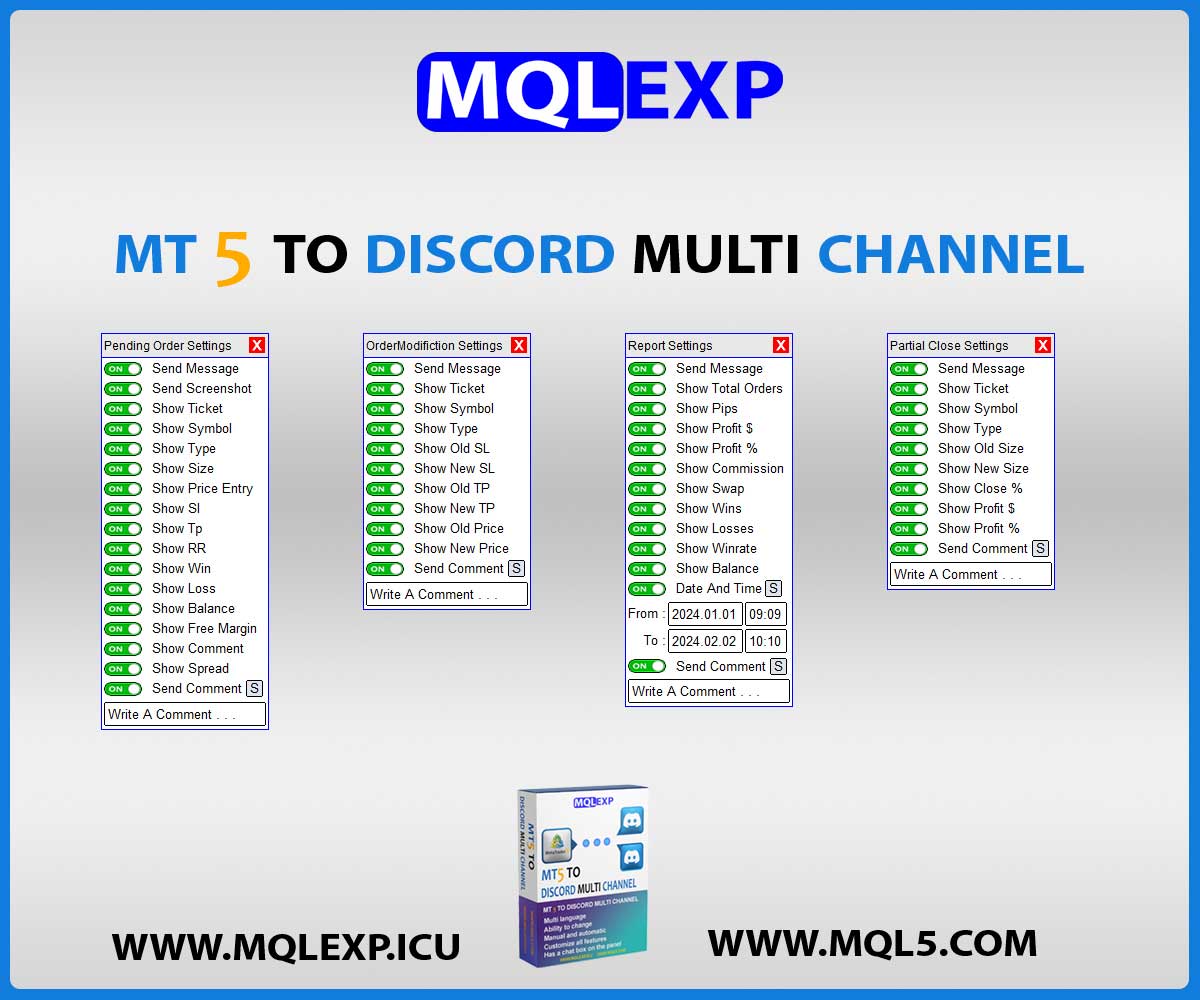
The EA delivers granular control and transparent visual reporting across the entire trade lifecycle:
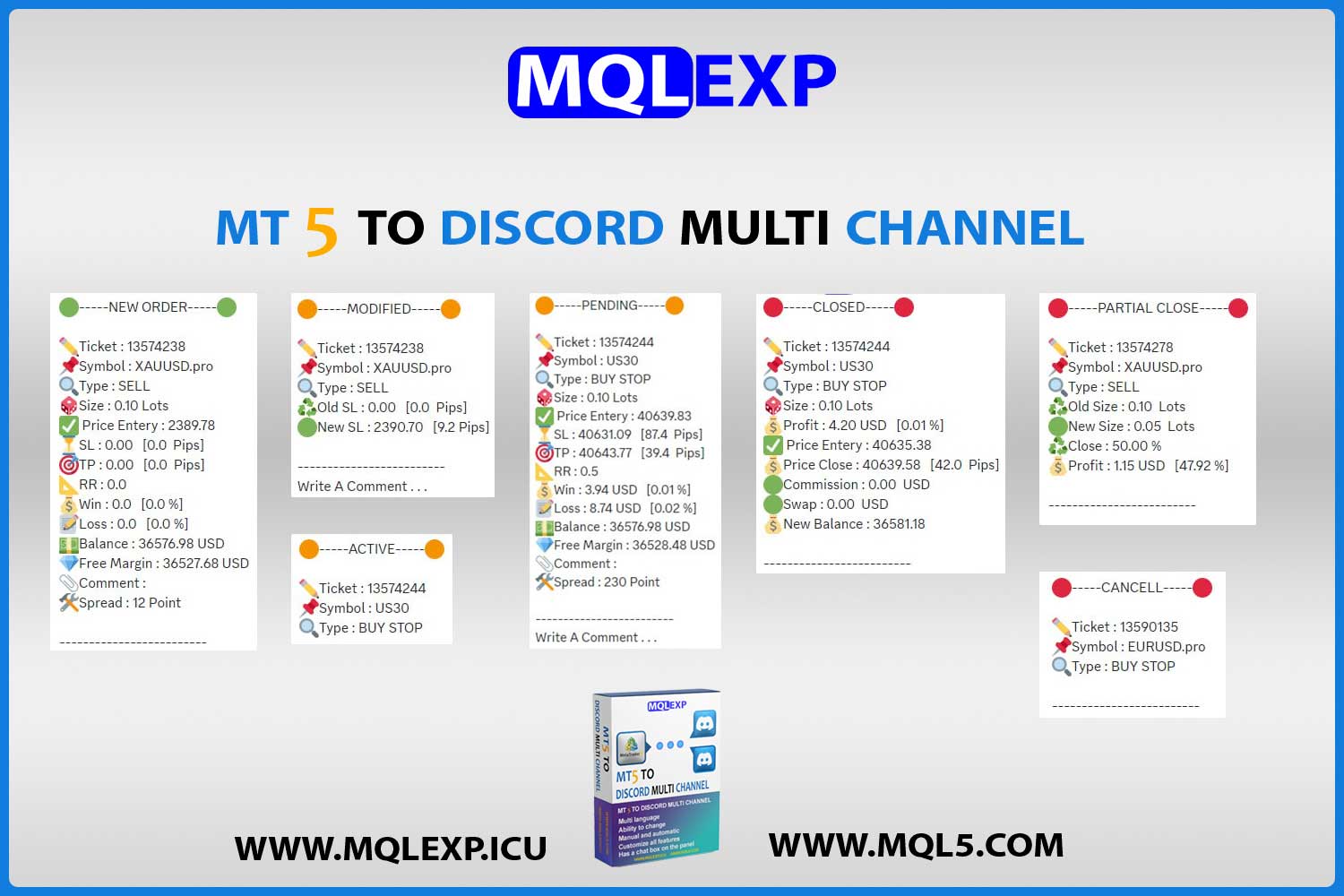
- New Order (Screenshot):
Instant notification of newly opened market positions with an attached live chart snapshot. - New Pending (Screenshot):
Visual alerts for pending orders (Buy/Sell Limits and Stops) with current market context. - Close Order (Screenshot) + Risk Reward Box:
Comprehensive close notifications featuring profit/loss results, an embedded Risk-to-Reward calculation box, and the closing chart screenshot. - Order Modification (Take Profit – Stop Loss – Price for Pending):
Real-time tracking whenever SL, TP, or entry levels are altered. - Partial Close (Lots):
Accurately reports scaled-out positions and remaining lot sizes without breaking trade continuity. - Cancel (Delete Pending):
Alerts subscribers when expired or canceled pending orders are removed from the terminal. - Active (Pending):
Instant notification the moment a pending order is triggered into an active market position. - Monthly Report:
Automated monthly accounting of net profit, drawdown, win rate, and total pips. - Weekly Report:
Scheduled end-of-week trading digests delivered straight to your channels. - Daily Report:
Clean end-of-day summary detailing closed trades and daily net performance. - Custom Report:
Generate tailored historical performance summaries filtered by custom dates and times. - Screenshot (Add custom Template):
Automatically attach your favorite chart template (indicators, color schemes, candlestick styles) onto screenshots before sending. - Chat Box:
Dedicated terminal chat utility to broadcast custom announcements or market commentary directly into Telegram. - Comment:
Embed customized notes and trading tags within your signal alerts.
How to install demo version :
In order for our valued customers to be able to test the trial version of the MT5 To Discord Multi Channel product, we placed it on the top of the page so that you can download it.
Be careful that these versions are experimental and after completing the purchase, Telegram support will send you the original files. Also, the desired files are being updated and upgraded, and dear customers in the support department, when the new and updated file is presented, the file will be sent to them in Telegram.
Step-by-Step Installation:
- Download the file from the links below and extract the package.
- Open the MT4 or MT5 platform, and select File from the main menu.
- Click Open Data Folder, then navigate to
MQL4/Experts(for MT4) orMQL5/Experts(for MT5). - Copy your EA file (
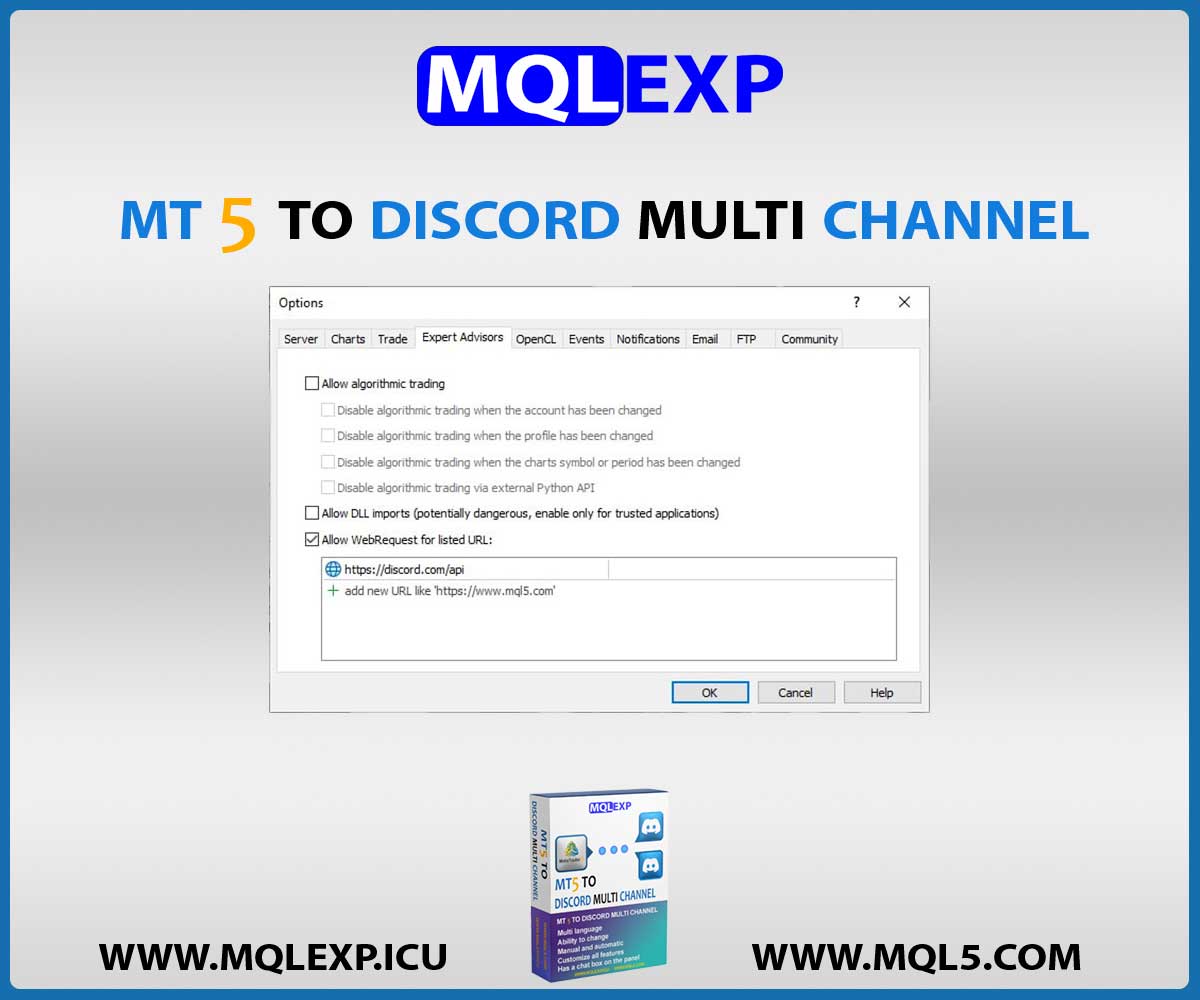
.ex4or.ex5) into this folder. - In MetaTrader, navigate to Tools > Options > Expert Advisors, check “Allow WebRequest for listed URL”, and add:
https://api.telegram.org - Restart MetaTrader.
- Attach the EA to any active chart, enter your Telegram Bot Token and Channel IDs for Channel 1 and Channel 2, and turn on Algo/AutoTrading.
Frequently Asked Questions
What is the difference between the standard Discord EA and the Multi Channel version?
The standard version connects your terminal to a single Discord channel or webhook. The Multi Channel edition allows you to broadcast simultaneously to two separate channels with completely independent settings, filters, screenshot templates, and message formatting for each channel.
Do I need two separate licenses for MT4 and MT5?
No. Both native .ex4 and .ex5 versions are bundled in this single product package, giving you total flexibility across both terminal generations.
Can I send Gold signals to Channel 1 and Silver/Bronze signals to Channel 2?
Yes! Because all settings and signal tiers are completely separate for both channels, you can easily segment your VIP signals to one channel and standard signals to another.
Get the Full Commercial License
To upgrade from the demo to the official unrestricted commercial license with lifetime updates and direct support, contact our dedicated support desk:
Telegram Support: https://t.me/MQLEXP_Support
Technical Specifications
| MetaTrader 5 |
Utilities MT5 |
|---|---|
| MetaTrader 4 |
Utilities MT4 |
| 1. |
All settings are separate for both Discord channels |
| 2. |
The possibility of using both Telegram channels separately |
| 3. |
All Discord settings are separate and have the ability to be personalized |
| 4. |
Possibility of Manual or Automatic sending |
| 5. |
Customize Message format – Language – Emoji |
| 6. |
Customize of Gold, Silver and Bronze signals |
| 7. |
Setting related to the Screenshot at the moment of opening or closing the position |
| 8. |
Customize which signal types to send |
| 9. |
Filter trades to send by Symbol or Magic Number |
| 10 |
Not sending or sending a special Symbol or Magic Number |
| 11. |
Ability to send Daily – Weekly – Monthly Report or customized Reports based on (Date and Time) |
| 12. |
Send an alert or point of view through the Chat Box |
| 13. |
Customizable comments |
Customer Reviews
Read customer feedback and share your own experience with this product. Reviews help other traders make informed choices.
daviid soo –
Finally, a tool that can handle both manual and automatic signals flawlessly. Great job!
mqlexp –
We are with you. Thank you for your positive feedback.